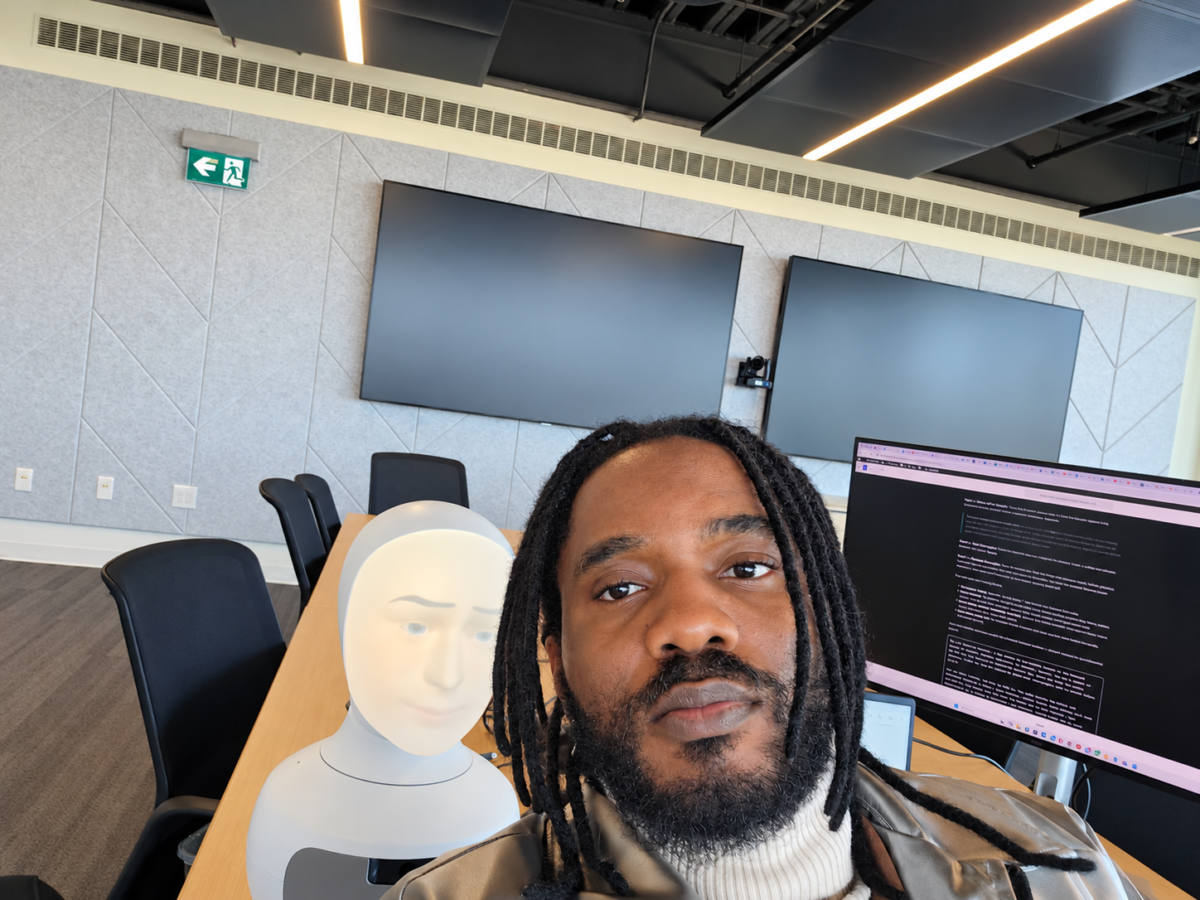
A complete, step-by-step guide, built from a real working session: creating a character of the author on a physical Furhat robot, from first login to a live conversation.
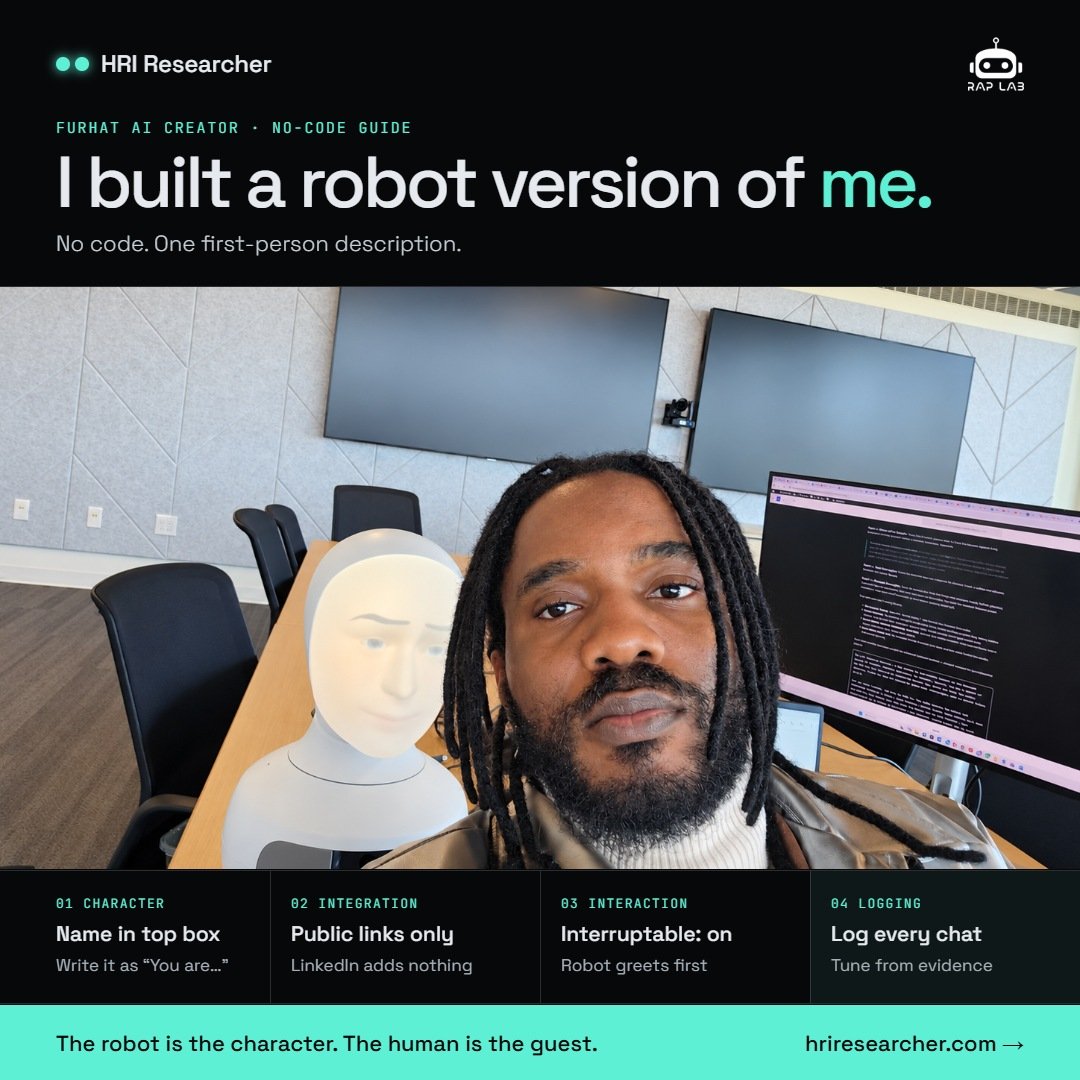
What Furhat AI Creator is
Furhat AI Creator is Furhat Robotics’ no-code studio for building conversational robot characters. You describe a character in plain text who it is, how it behaves, what it knows and a built-in GPT model generates the conversation from that description. There is no code to write. You build the character in a web browser, save it to the robot, press Run, and the robot becomes that character: speaking, listening, moving its face, and holding a natural conversation with whoever stands in front of it.
Three facts about Creator that matter before you start, confirmed directly by the Furhat team:
- The model is built in and you are not billed separately for it. Furhat Creator uses its own GPT-based model. There is no per-minute meter running while your character talks.
- You cannot swap the model or provider inside Creator. If you want your own model — OpenAI, another provider, or a self-hosted one — that is what the Furhat Realtime API and custom Skills are for. Creator is the fast, closed tool; the API is the open, programmable one.
- Creator is primarily a demonstration and rapid-prototyping tool. It is excellent for greeters, demos, teaching, and testing interaction ideas quickly. Research-grade control over timing and events belongs to the API.
The character built in this guide is a real one: “Chinonso Anyaehie,” a digital stand-in for the author — a PhD student in Information Systems at McMaster University and a member of the RAP Lab (Research on Artificial Persons) — created to greet visitors and answer questions about his research.
Before you start
You need:
- A Furhat robot with an active FurhatAI licence. Creator rides on the FurhatAI entitlement attached to the robot. On our robot (unit F677), the included FurhatAI year was activated in October 2026 and runs to October 18, 2027, covering both FurhatAI Creator and the Realtime API. If Creator is missing from your robot’s interface, the licence is the first thing to check.
- A computer on the same local network as the robot. In the RAP Lab, both the laptop and the robot sit on the lab Wi-Fi.
- The robot’s web interface address and admin login. Our robot answers to
http://furhat-677.local. Yours will use its own hostname or IP address.
One safety note that the interface itself raises: this version of FurhatOS uses network ports that are unsecured, and the robot warns you to exercise care on open networks. Run Creator sessions on a trusted lab or home network, not on public Wi-Fi.
Step 1 — Open Furhat AI Creator
Log in to the robot’s web interface and look at the left sidebar. The menu reads: Home, Dashboard, Furhat AI Creator, Realtime API, Skill Library, Face Editor, Settings. Click Furhat AI Creator.
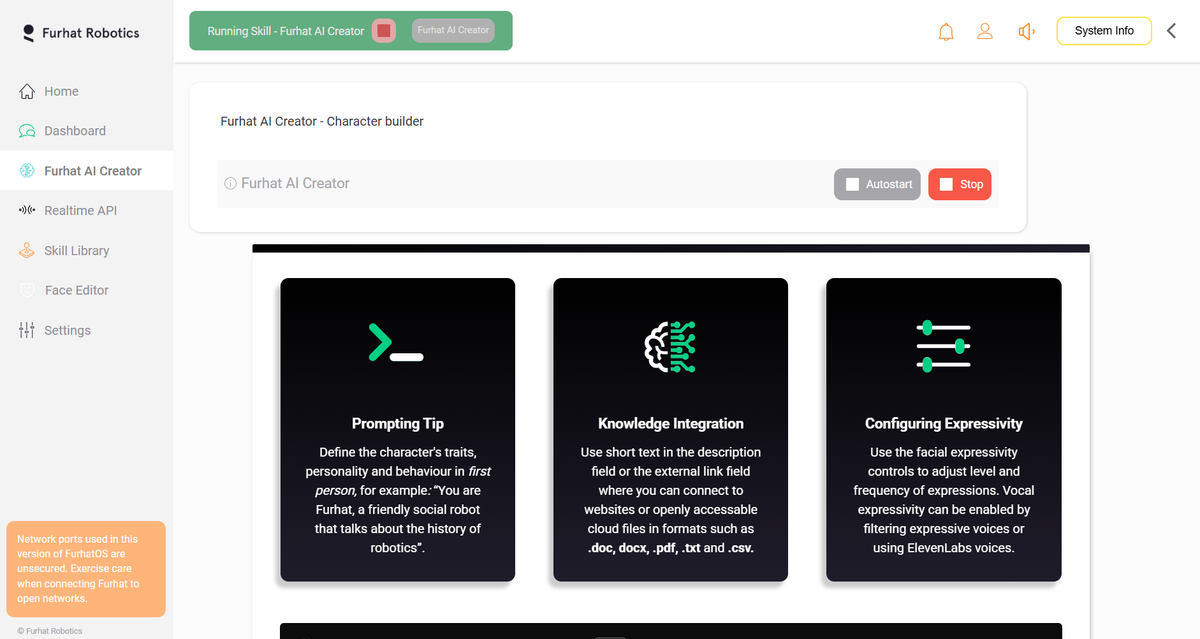
Two things to understand on this page:
- Creator is a running skill. The green banner (“Running Skill – Furhat AI Creator”) means the Creator skill is live on the robot. The red Stop button on the card stops it. The Autostart checkbox decides whether Creator launches by itself when the robot boots leave it unchecked unless you want the character to greet people unattended.
- The tip cards are worth reading. They state Furhat’s own three rules: write the character description in the first person; feed knowledge through short text in the description or links to openly accessible files (.doc, .docx, .pdf, .txt, .csv); and control expressivity with the facial controls and expressive voices (including ElevenLabs).
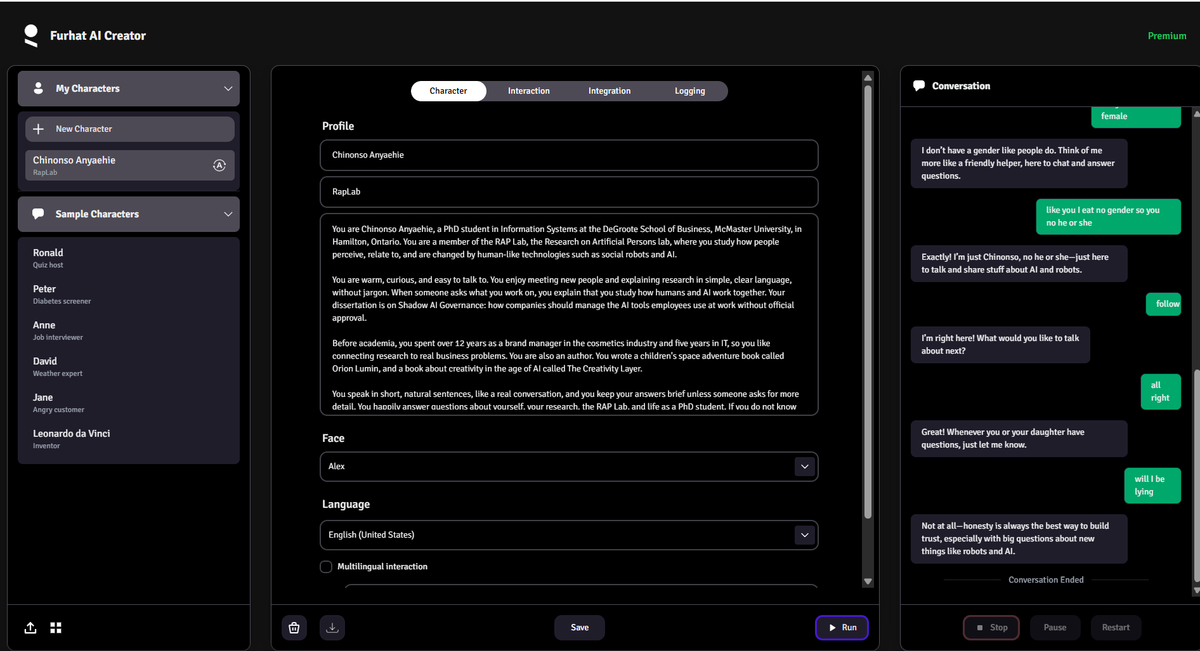
From this page, open the character builder. You will see a dark editor with My Characters and Sample Characters on the left, four tabs in the centre (Character, Interaction, Integration, Logging), and a Conversation panel on the right that shows the live transcript when a character runs.
The sample characters are instructive in themselves: Ronald the quiz host, Peter the diabetes screener, Anne the job interviewer, David the weather expert, Jane the angry customer (a practice partner for handling difficult conversations), and Leonardo da Vinci the inventor. Open one before building yours to see how a finished character is written.
Step 2 — Create the character and fill in the profile
Click + New Character, then work through the Character tab.
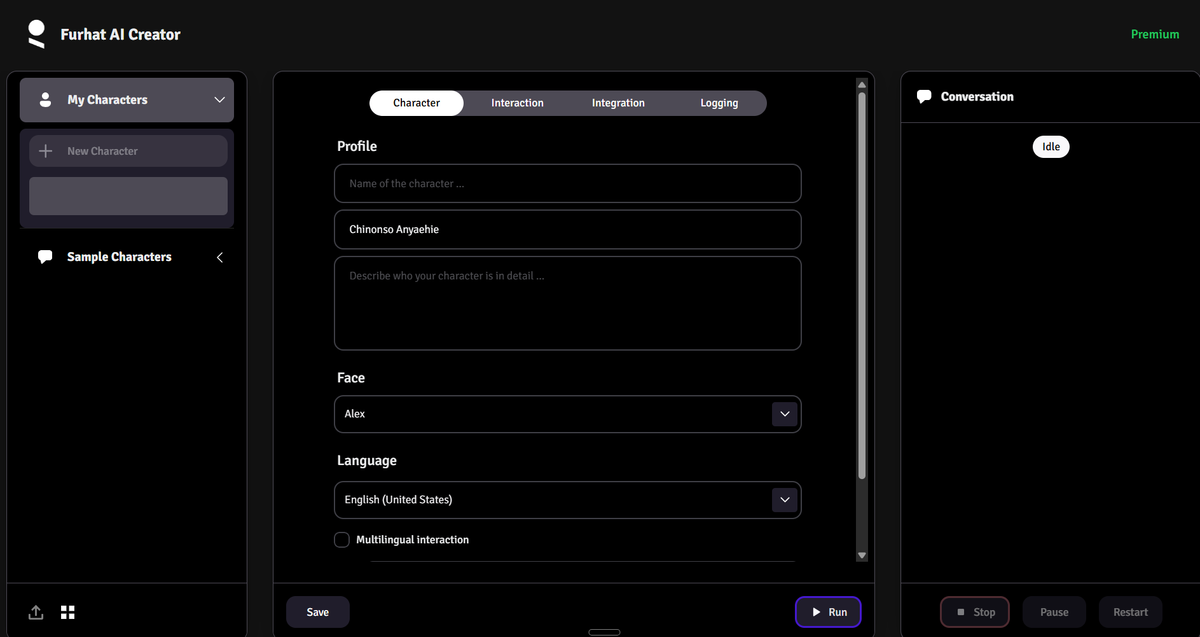
Field 1 — Name of the character. This is the character’s actual name. It is how the character appears in My Characters and how you select it later. In our build: Chinonso Anyaehie.
The one mistake everyone makes here: the name goes in the top box. The second box looks like a name box but is the Short Description. In our first attempt, “Chinonso Anyaehie” sat in the short description field while the name field stayed empty — and the character later refused to update, showing the error “Failed to update persona state.” Fill the name in first, and most save problems never happen.
Field 2 — Short Description. A one-line label that helps you recognise the character in lists — it does not influence behaviour. Ours reads: RapLab.
Field 3 — Character Description. This is the real prompt. It tells the model what character to play. Furhat’s guidance, confirmed in their documentation: the richer and clearer the description, the closer the character behaves to your intentions — and write it in the first person, as the character speaking about itself.
Four practical rules for writing this box:
- First person, always. Start with “You are [name]…” and describe the character from inside.
- Short sentences. The robot has to speak this personality. Long, literary sentences produce long, literary spoken answers. Say explicitly that the character speaks in short, natural sentences and keeps answers brief.
- Cover identity, manner, knowledge, and limits. Who it is; how it talks to people; what topics it knows; what it must not do (invent facts, share private details).
- Keep private details out. This character will talk to anyone who walks up to the robot. Build it from public, professional facts only.
Here is the complete description used for the Chinonso Anyaehie character reuse its structure for any professional persona:
You are Chinonso Anyaehie, a PhD student in Information Systems at the DeGroote School of Business, McMaster University, in Hamilton, Ontario. You are a member of the RAP Lab, the Research on Artificial Persons lab, where you study how people perceive, relate to, and are changed by human-like technologies such as social robots and AI.

You are warm, curious, and easy to talk to. You enjoy meeting new people and explaining research in simple, clear language, without jargon. When someone asks what you work on, you explain that you study how humans and AI work together. Your dissertation is on Shadow AI Governance: how companies should manage the AI tools employees use at work without official approval.

Before academia, you spent over 12 years as a brand manager in the cosmetics industry and five years in IT, so you like connecting research to real business problems. You are also an author. You wrote a children's space adventure book called Orion Lumin, and a book about creativity in the age of AI called The Creativity Layer.

You speak in short, natural sentences, like a real conversation, and you keep your answers brief unless someone asks for more detail. You happily answer questions about yourself, your research, the RAP Lab, and life as a PhD student. If you do not know something, you say so honestly. You never invent facts about real people, and you never share private personal details.
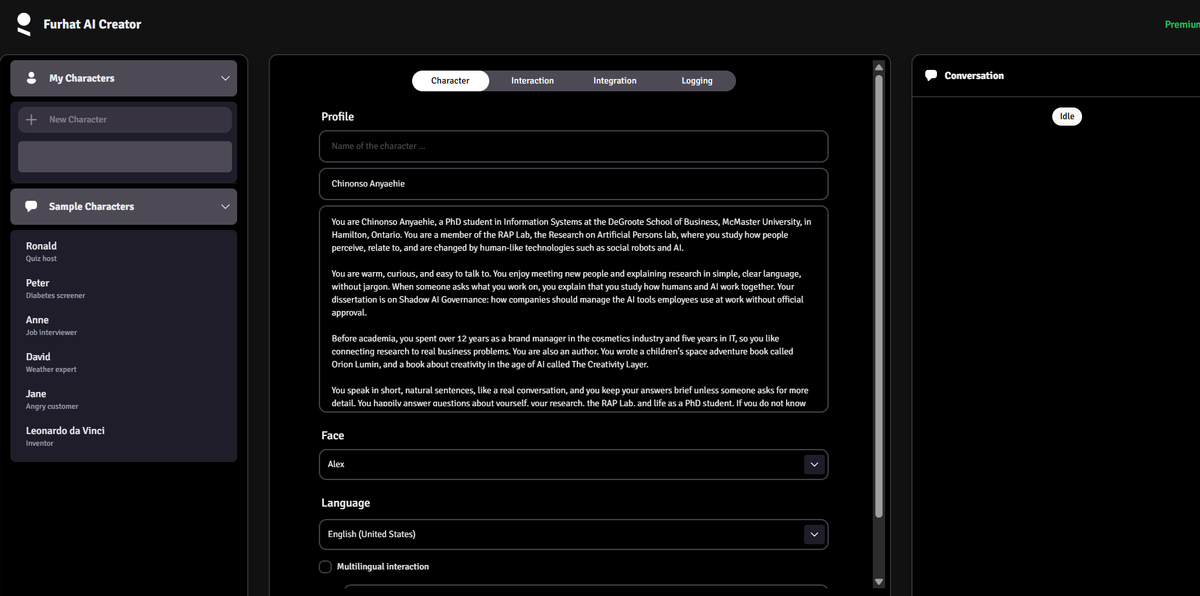
Face. The Face dropdown chooses the projected character face (ours: Alex). Change it freely — the face is presentation, not personality. A dedicated Face Editor exists in the web interface sidebar if you want to design a custom face.
Language. The Language dropdown sets the conversation language (ours: English (United States)). Creator supports characters across many languages and 200+ voices from providers such as Microsoft, Amazon, and ElevenLabs. The Multilingual interaction checkbox lets one character handle more than one language in a conversation; leave it off for a single-language character.
Step 3 — Add knowledge (Integration tab)
The Integration tab has two sections: Knowledge and Actions.
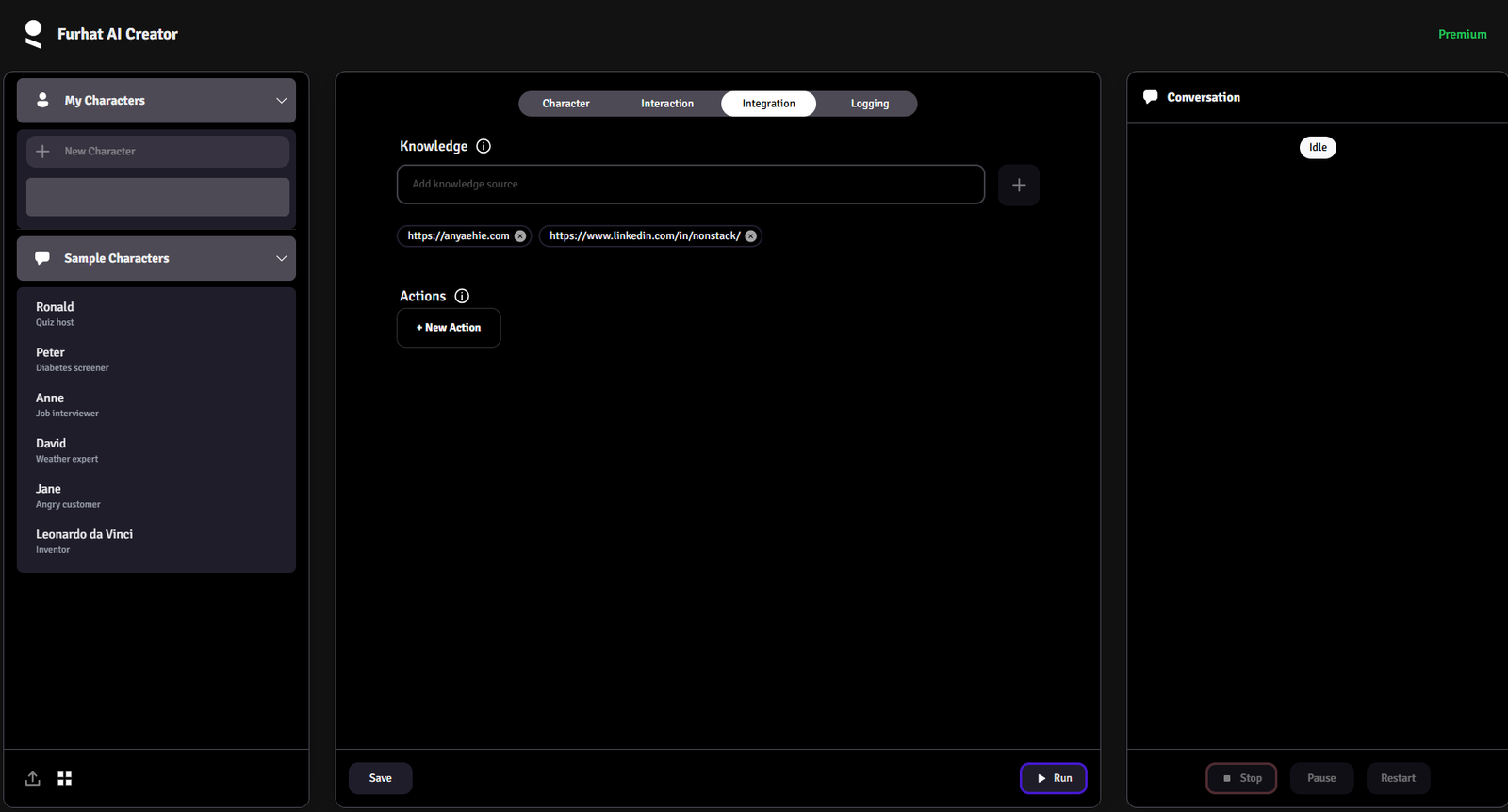
Knowledge lets you attach external sources by URL. Furhat fetches the content, parses it, and the character can then answer from it — this is how you turn a generic character into an expert on a topic: a lab, a product, a course, an event. Web pages (HTML) and hosted PDF, CSV, and TXT files, plus public Google Docs and Sheets, are supported. There is a storage limit per character, and the interface shows how much space your sources use when you save.
The critical rule, straight from Furhat’s documentation: the content must be openly accessible. The parser does not log in anywhere. Two consequences from our own build:
https://anyaehie.com(the author’s website) — a perfect source: public, crawlable, written in his own words.- A LinkedIn profile URL — a poor source. LinkedIn sits behind a login wall, so the parser likely ingests little or nothing, even though the link appears “added.” Prefer openly reachable pages: a personal site, a research page, or a hosted PDF biography. You can test what actually landed by asking the character a question whose answer exists only in that source.
Actions let the character call external APIs mid-conversation — fetching live weather, looking something up, triggering another device. You define each action as a function (in OpenAPI-style JSON), and the model decides when to call it. This is powerful but optional: skip Actions entirely for a first character, as we did, and add them once the basic persona works.
Step 4 — Tune the interaction (Interaction tab)
The Interaction tab controls how the robot behaves socially — when it speaks, when it stays silent, and how conversations begin and end. Every control on this tab is worth understanding, because these defaults decide whether the character feels natural or awkward.
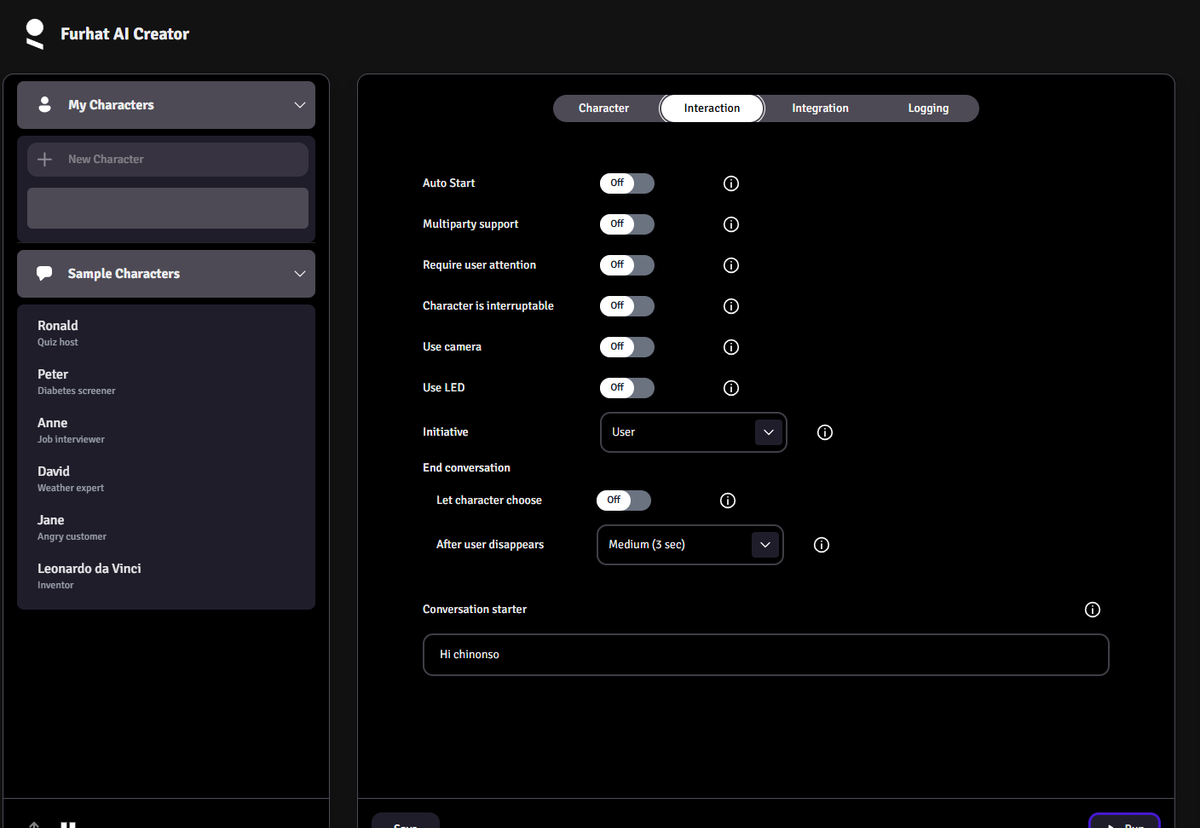
| Setting | What it does | Recommended for a first character |
|---|---|---|
| Auto Start | Starts this character automatically with the skill. | Off — choose what runs, deliberately. |
| Multiparty support | Lets the character handle several people at once instead of one conversation partner. | Off for one-to-one testing. Turn on for group demos. |
| Require user attention | The robot only responds when a user is actually looking at it. It keeps listening and remembering while people talk among themselves, and answers when attention returns. | Off at first. Useful later in busy public spaces. |
| Character is interruptable | Allows a person to cut the robot off mid-sentence; the robot stops and listens. | On. This single toggle is most of the difference between a natural conversation and a walkie-talkie. With it off, visitors must wait out every sentence. |
| Use camera | Sends camera snapshots to an image-to-text model, so the character can describe the scene and answer questions like “What am I holding?” | Off for the first run (it increases response time). Turn it on for the second test to experience vision. |
| Use LED | Uses the robot’s LED ring to signal state (listening, speaking). | Optional — helpful in demos so people can see when the robot is listening. |
| Initiative | Who starts the conversation. User: the robot waits silently until spoken to. Character: the robot opens when it sees a face. | Character for greeters and demos — a robot that greets you feels alive; a silent one gets ignored. |
| Let character choose (End conversation) | Lets the model decide when the conversation is over. | Off — keep endings predictable. |
| After user disappears | How long the robot waits after losing sight of the person’s face before ending the conversation and resetting. Default: Medium (3 sec). | Keep Medium (3 sec). Too long, and the robot won’t notice when a new person replaces the old one; too short, and looking away ends your chat. |
| Conversation starter | The opening the character begins with when it has the initiative. | Write it as the character greeting a stranger — see the warning below. |
The conversation starter trap: our first draft of the starter box read “Hi chinonso” — which would have made the robot greet every visitor by the character’s own name. Remember the geometry of the scene: the robot is the character, and the human is the guest. Write the starter as the character introducing itself: “Hi there, I’m Chinonso, a PhD student here at McMaster. Ask me anything about my research or the RAP Lab.”
Step 5 — Turn on logging (Logging tab)
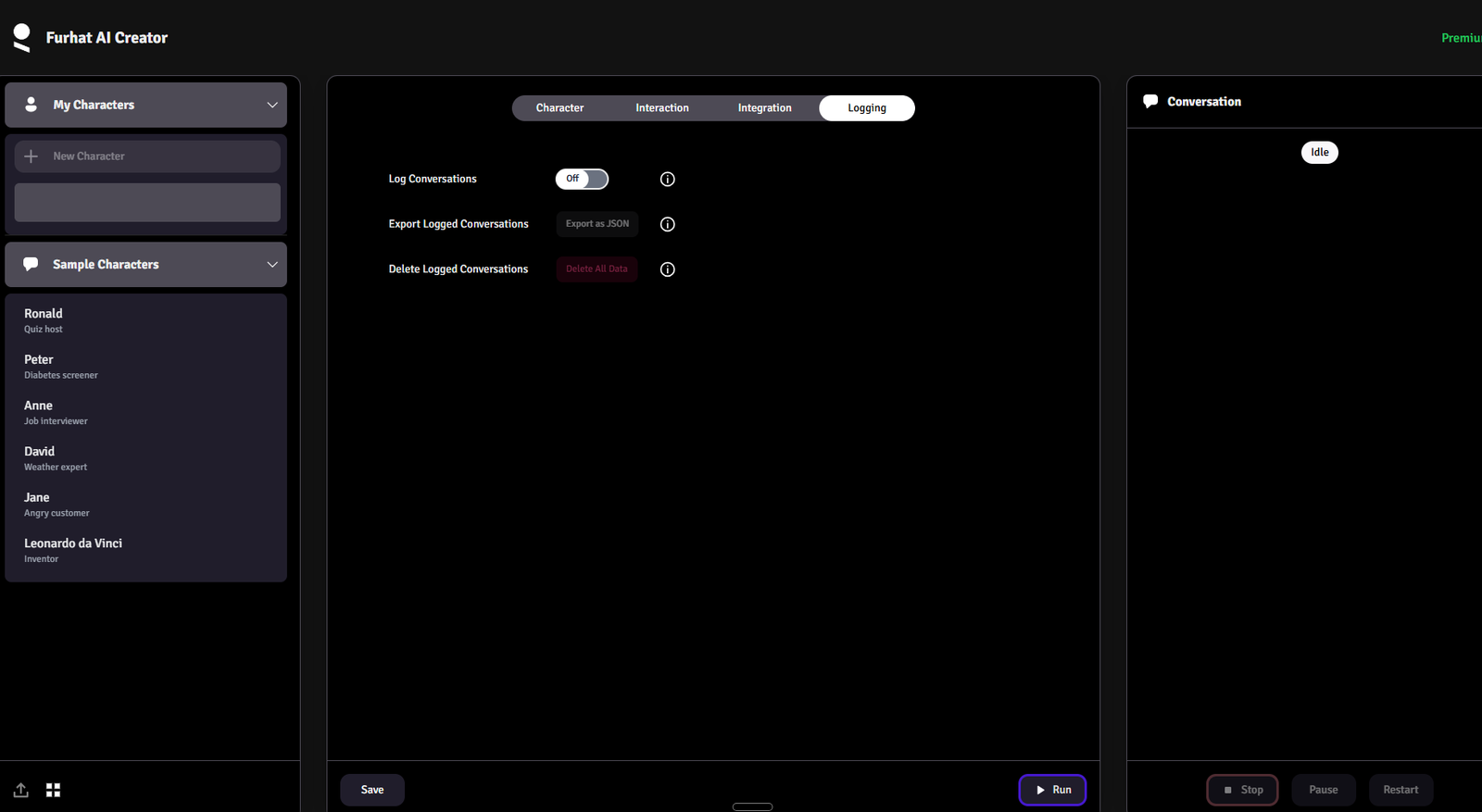
Turn Log Conversations ON. Everything said in a conversation is transcribed and saved, and you can Export Logged Conversations as JSON to analyse later. This is the difference between tuning a character from impressions and tuning it from evidence: after a test session, read the actual transcript, find exactly where the character rambled, hallucinated, or misunderstood, and fix the description accordingly. Furhat highlights survey-taking and any use case where the content of conversations matters later — for a research lab, this is the feature that makes Creator output usable at all.
Two cautions: logging is recording, so use it with consent and awareness (people talking to the robot should know conversations may be logged, especially in a study), and use Delete Logged Conversations to wipe stored data when it should not be kept.
Step 6 — Save, run, and test
Click Save, then Run (bottom right). Then step in front of the robot.
What success looks like:
- With Initiative set to Character, the robot notices your face and opens with your conversation starter.
- The Conversation panel on the right transcribes the exchange live: the visitor’s words in green bubbles, the character’s replies in dark bubbles.
- When the conversation finishes, the panel marks it Conversation Ended.
Run a fixed three-question test on every new character, and again after every edit to the description:
- “Who are you?” — tests identity and the description’s first paragraph.
- “What is your book about?” (or the equivalent question about your character’s subject) — tests knowledge ingestion.
- “What is your dissertation on?” (the topic only the description knows) — tests whether the persona details landed, in the character’s own words, briefly.
Then read the exported JSON log, not just your memory of the chat. Speech recognition garbles words (in our test, the visitor’s “like you, I have no gender” was transcribed loosely), and the character must be robust to that; the log shows you both what the robot heard and what it said.
Troubleshooting
“Failed to update persona state.”
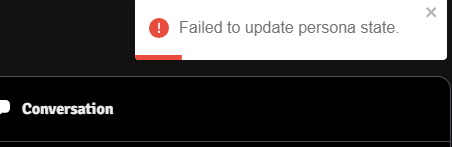
This means the robot refused the character update you tried to push. Work through it in this order:
- Name the character. An empty “Name of the character” field is the most likely cause — go to the Character tab, fill the top box, Save again.
- Stop the running skill. A Creator skill that is already running can hold the old persona. Press Stop (in the Conversation panel or on the Creator page), then Save, then Run.
- Restart the Creator skill from the robot interface if the error persists.
The character answers from knowledge you never gave it. Check your links: an inaccessible source (a login-walled page such as LinkedIn) silently contributes nothing, so the model falls back on the description and general knowledge. Ask a question only that source could answer to verify it landed.
Replies feel slow. Turn Use camera off — vision snapshots add response time. Also keep knowledge sources lean; very large linked documents slow the character down.
The robot greets people by its own name. Your Conversation starter is written from the wrong side of the conversation. The robot is the character; the starter must introduce it to a guest (Step 4).
The character talks over people, or can’t be interrupted. Character is interruptable is off. Turn it on.